
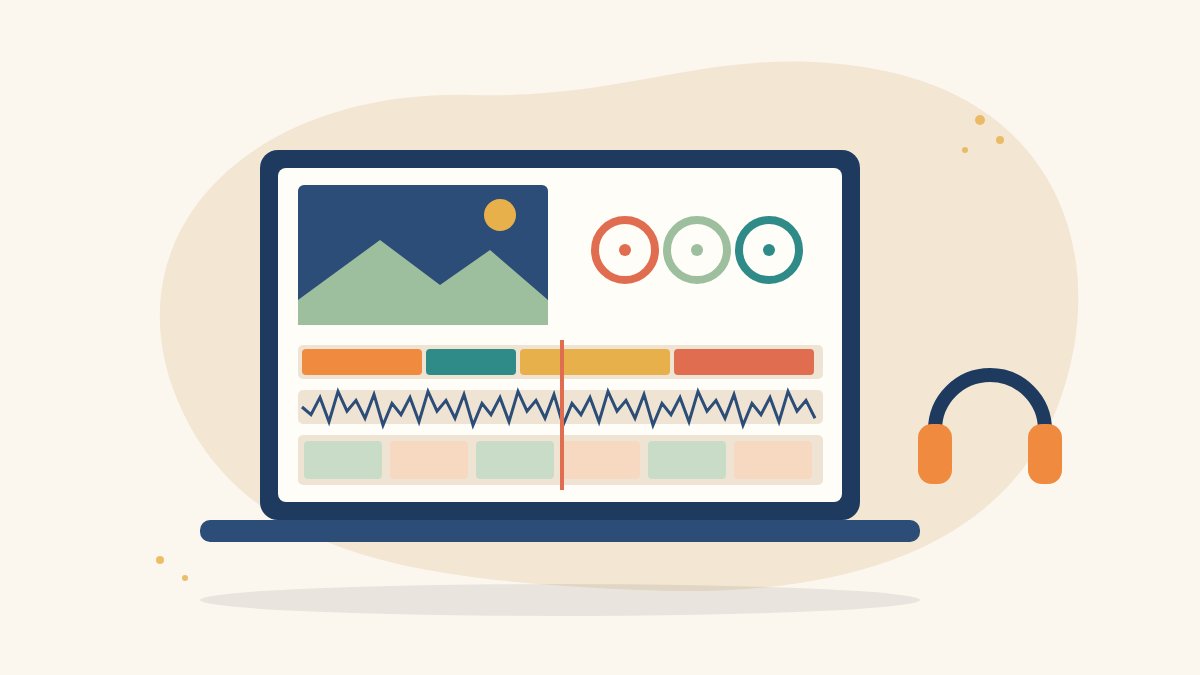
DaVinci Resolve is one of the most popular video editing applications in the world. It is used for feature films, web series, YouTube videos and ads, and Blackmagic Design offers a no-cost version alongside its paid Studio version, which makes it a favourite of beginners who want to learn on professional software from day one.
The first time you open it, though, Resolve can look overwhelming. This DaVinci Resolve for beginners guide walks you through the interface, setting up your first project, a simple editing workflow, basic colour and audio, exporting, and the habits that will help you turn editing into a career.
Why learn DaVinci Resolve?
- It is industry standard. Resolve’s colour tools are widely used in professional post-production, and its editing tools have grown strong too.
- Everything is in one place. Editing, colour grading, visual effects, audio and export all live in a single application.
- It is accessible to learners. The standard free version of Resolve covers most of what a beginner needs. The paid Studio version adds advanced features you can explore later.
- It builds employable skills. Editing is needed by production houses, agencies, news platforms, YouTube channels and brands.
Before installing, check Blackmagic Design’s official system requirements. Resolve relies heavily on your computer’s graphics card, so an older laptop may struggle with high-resolution footage.
Understanding the interface: the pages
Resolve is organised into pages, which you switch between using the buttons along the bottom of the screen:
- Media: import and organise your footage, audio and images.
- Cut: a fast, simplified editing page for quick projects.
- Edit: the traditional timeline editor, where most beginners spend their time.
- Fusion: visual effects and motion graphics.
- Color: colour correction and grading.
- Fairlight: audio editing and mixing.
- Deliver: export your finished video.
You do not need to master all seven pages at once. Start with Media, Edit, a little Color and Deliver.
Setting up your first project
- Create a project. Open Resolve, and in the Project Manager click New Project and give it a clear name.
- Check project settings. Open the settings (the gear icon at the bottom right) and set the timeline resolution and frame rate. A common choice for online video is 1920 x 1080 at 25 or 30 frames per second, but match the frame rate of your footage where possible.
- Organise your files first. On your computer, create folders such as Footage, Audio, Graphics and Exports before importing.
- Import media. On the Media page, drag your folders into the Media Pool. If Resolve asks to change the project frame rate to match your clips, think before you agree.
A simple editing workflow on the Edit page
Build a rough cut
Drag your best clips into the timeline in story order. Do not worry about precision yet; focus on getting the structure right from beginning to end.
Trim and cut
Use the Selection tool (shortcut A) to trim clip edges and the Blade tool (shortcut B) to cut clips. Ctrl+B (Cmd+B on Mac) splits a clip at the playhead. The J, K and L keys play backwards, pause and play forwards, which speeds up reviewing footage enormously.
Use in and out points
In the source viewer, press I to mark an in point and O to mark an out point, then add only that part of the clip to the timeline. This keeps your timeline clean.
Add transitions and titles sparingly
The Effects library contains transitions and titles. A simple cross dissolve or a clean lower third usually looks more professional than flashy effects. Most good edits rely on straight cuts.
Add music and sound
Place music and voice-over on separate audio tracks. Lower the music under speech so the voice is always clear. Only use music you have the rights to, such as tracks from licensed libraries or properly credited royalty-free sources.
Basic colour correction on the Color page
Colour grading is a deep skill, but beginners can make big improvements with a few steps:
- Balance first: use the primary wheels to fix exposure and white balance so skin tones look natural.
- Watch the scopes: the waveform and parade scopes show brightness and colour more reliably than your eyes on an uncalibrated laptop screen.
- Match shots: make clips from the same scene look consistent before adding any creative look.
- Use nodes: Resolve works with nodes, which are like layers of adjustments. Keep correction and creative looks on separate nodes so you can change one without breaking the other.
Cleaning up audio
Bad audio makes viewers leave faster than bad video. On the Edit page or the Fairlight page, adjust clip volume, add short fades at the start and end of clips, and keep dialogue at a consistent level. Resolve also includes tools to reduce background noise, which helps with interviews recorded in noisy spaces.
Exporting on the Deliver page
- Go to the Deliver page and choose a preset, such as YouTube or H.264.
- Check the resolution, frame rate and file name.
- Choose where to save the file, ideally your Exports folder.
- Click Add to Render Queue, then Render All.
- Watch the exported file from start to finish before you share it.
Common beginner mistakes
- Skipping project settings and ending up with the wrong frame rate.
- Leaving media scattered across desktop, downloads and phone folders, which causes offline clips.
- Overusing transitions and effects.
- Grading on a very bright or very dim screen without checking scopes.
- Not saving project backups. Resolve has project backup options in its preferences; turn them on.
How to practise and build a portfolio
- Edit a one-minute story from your own phone footage every week.
- Recut a film trailer or music video using footage you are allowed to use, to study pacing.
- Create a short documentary about a local craft, market or family tradition.
- Turn your best edits into a showreel. Our guide on how to make a showreel explains how.
If you are thinking about editing as a career, read our guide to becoming a video editor without a degree.
Learn DaVinci Resolve with Karuna Media
Puppets Picture Education Trust (PPET) in Noida runs the 12-month Karuna Media Master Program for women from underprivileged homes. Students edit in DaVinci Resolve on professional editing suites, work with footage from their own shoots, produce a capstone film and revise their reels with mentors before placement interviews. The program also covers filmmaking, cinematography, audio, graphic design and AI content creation.
To check eligibility and the next batch, visit our application page. If you would like to help more women learn professional editing, you can support our work.
Final thoughts
DaVinci Resolve for beginners is all about small steps: set up your project correctly, learn the Edit page, fix colour and audio simply, and export with care. Edit something every week, and within a few months the software that once looked overwhelming will feel like home.
The Giving Movement by Karuna Media · #TheGivingMovement
Wear the cause: tees, a tote and a mug that fund media training for women
Tee (Black) ₹699 · Tee (White) ₹649 · Tote ₹449 · Mug ₹399. Printed on demand and shipped across India. 100% of the profit funds media training for underprivileged women.
Buy now on Razorpay Prefer to donate? Go to our donate pageMerch is a purchase, not a donation, and is not eligible for 80G. To make a donation, use our donate page.



2 Comments