You film a beautiful landscape clip, upload it as a Reel and it appears as a thin strip in the middle of the screen. Or you shoot a vertical interview and it looks tiny on YouTube with black bars on both sides. Both problems come from the same thing: aspect ratio.
This guide explains what aspect ratio means, the common ratios you will meet, what YouTube and Instagram say about them, how to frame one shoot for several platforms and includes an illustrative plan for turning one shoot into three versions.
What is aspect ratio?
Aspect ratio is the relationship between the width and height of a frame, written as width:height. A 16:9 frame is 16 units wide for every 9 units tall. The ratio describes the shape, not the size: 1920 x 1080 pixels and 3840 x 2160 pixels are both 16:9. You can read more on the general idea in this overview of image aspect ratios.
Resolution is the number of pixels. Aspect ratio is the shape of the rectangle those pixels make. When you change one without thinking about the other, you get stretching, cropping or black bars.
The ratios you will use most
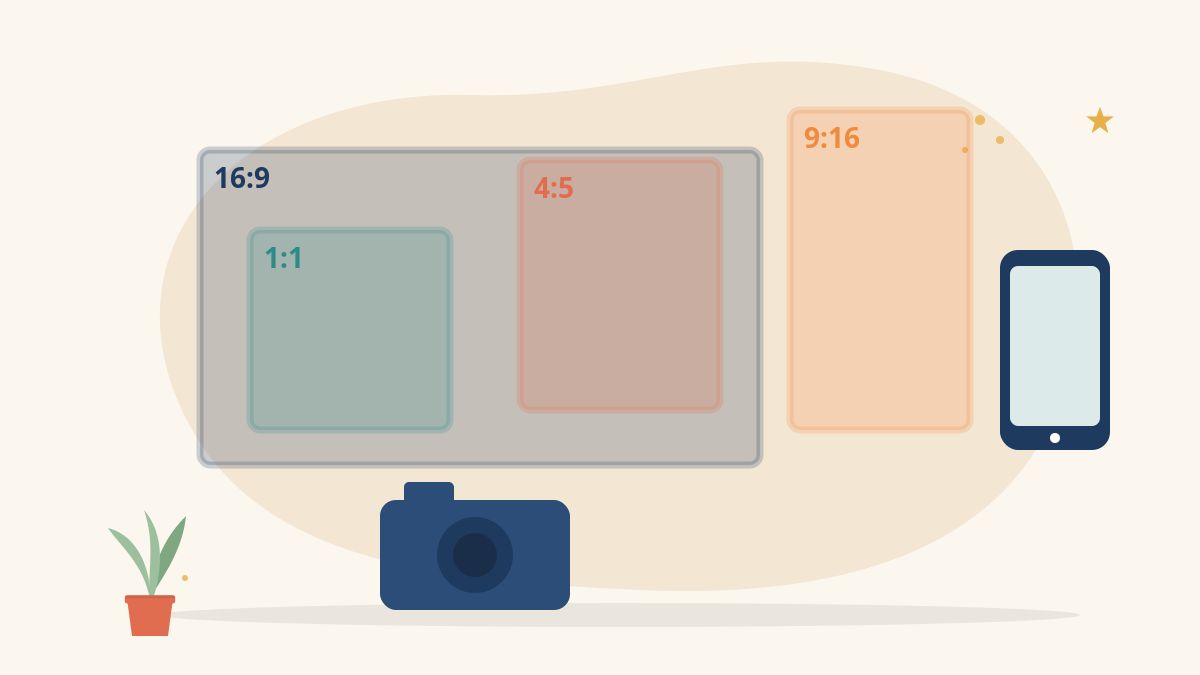
- 16:9 (landscape): the standard for YouTube, television and most laptops. Common sizes: 1920 x 1080 (Full HD) and 3840 x 2160 (4K).
- 9:16 (vertical): full-screen on phones, used for Reels, Shorts and Stories. Common size: 1080 x 1920.
- 1:1 (square): works in feeds and on websites. Common size: 1080 x 1080.
- 4:5 (portrait): a taller feed format that takes more screen space than square without going full vertical. Common size: 1080 x 1350.
- 4:3: the older television and many phone photo defaults.
- Wider cinema ratios such as 2.39:1: used for a film look, often by adding bars to a 16:9 frame in the edit.
What the platforms say
Platform rules change, so check the official help pages before an important upload.
YouTube
According to YouTube Help on resolution and aspect ratios, the standard aspect ratio for YouTube on a computer is 16:9, and the player adapts automatically to videos with other ratios. YouTube’s page on three-minute Shorts explains that, for standard channels, videos uploaded since 15 October 2024 with a square or vertical aspect ratio and up to three minutes long are categorised as Shorts. If you want a video treated as long-form, YouTube suggests using a wider ratio such as 16:9.
Instagram’s Help Center page on Reel size and aspect ratios says you can upload a reel with an aspect ratio between 1.91:1 and 9:16, with a minimum frame rate of 30 fps and minimum resolution of 720 pixels. For photos, Instagram’s page on image resolution says it keeps the original resolution for ratios between 1.91:1 and 3:4 at widths up to 1,080 pixels, and crops other ratios to fit.
In practice, 9:16 fills the phone screen for Reels, while 4:5 or 1:1 are safe, familiar shapes for feed posts.
How to choose before you shoot
Decide where the video will be seen most, then shoot for that first.
- One main platform: shoot natively in its ratio. For Reels, hold the phone vertically. For YouTube, shoot landscape.
- Several platforms: shoot in the widest format with high resolution, such as 4K landscape, and frame loosely so you can crop a vertical or square version later.
- Interviews and talking heads: keep the speaker near the centre of the frame so a vertical crop still works.
- Text and graphics: add them after cropping, so they fit each version properly.
For more on framing choices, see our guide to camera shot types explained.
Framing tips for multi-ratio video
- Use a centre-safe zone. Keep faces and key action inside the middle third of a landscape frame if you plan a vertical crop.
- Leave headroom and footroom so you can reframe without cutting off heads or hands.
- Watch the platform overlays. On vertical video, usernames, captions and buttons cover parts of the bottom and right edges. Keep important text away from those areas.
- Avoid stretching. Never force a 16:9 clip into 9:16 by distorting it. Crop, reframe or place it on a designed background instead.
- Know the bars. Black bars at the top and bottom are letterboxing; bars at the sides are pillarboxing. They usually mean the video ratio does not match the screen.
Setting the ratio in your edit
Most editors let you set the sequence or project ratio before you start. In mobile apps, choose the canvas or ratio option (often 9:16, 1:1, 4:5 or 16:9) at the beginning. In desktop editors, create a new sequence with the right frame size, such as 1080 x 1920 for vertical. Then reposition each clip within the frame. When exporting, match the export resolution to the sequence. Our guides on exporting video for YouTube and editing Reels on your phone walk through the settings.
Illustrative plan: one shoot, three versions
The plan below is illustrative, for a three-minute explainer filmed at a community workshop.
- Shoot: 4K landscape (3840 x 2160), speaker framed in a medium shot with space on both sides, B-roll of hands at work filmed slightly wider than usual.
- Version 1, YouTube (16:9, 1920 x 1080): full explainer with lower-third titles placed inside the frame edges.
- Version 2, Reel or Short (9:16, 1080 x 1920): 45-second cut, each shot reframed around the speaker’s face; captions placed in the upper-middle area to avoid on-screen buttons.
- Version 3, feed post (4:5, 1080 x 1350): 30-second highlight with a bold title card at the start.
- Check: watch each version on a phone before publishing.
Aspect ratio checklist
- Have I decided the main platform before shooting?
- Is the sequence set to the right ratio and resolution?
- Are faces and text safe from cropping and overlays?
- Is any footage stretched or squashed?
- Have I checked the latest platform help page?
Karuna Media trains women in filmmaking, editing and digital media. Explore our programmes or apply here, and if you would like to support this work, donate to Karuna Media.
The Giving Movement by Karuna Media · #TheGivingMovement
Wear the cause: tees, a tote and a mug that fund media training for women
Tee (Black) ₹699 · Tee (White) ₹649 · Tote ₹449 · Mug ₹399. Printed on demand and shipped across India. 100% of the profit funds media training for underprivileged women.
Buy now on Razorpay Prefer to donate? Go to our donate pageMerch is a purchase, not a donation, and is not eligible for 80G. To make a donation, use our donate page.