
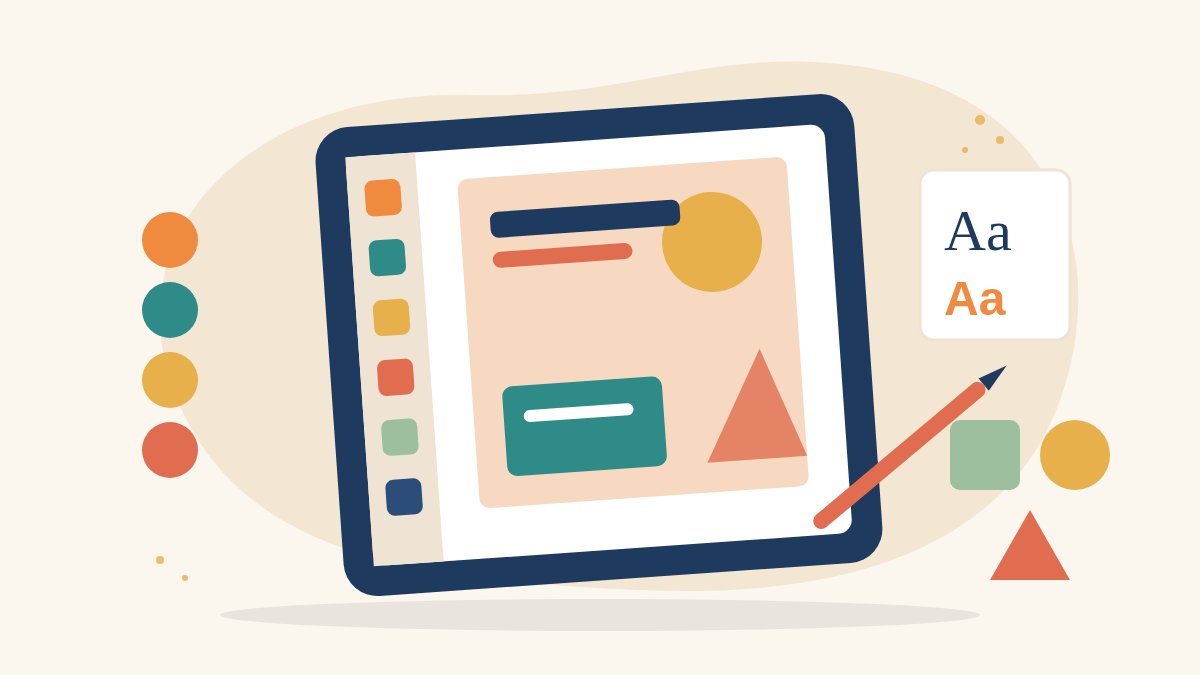
Canva has become the go-to design tool for small businesses, NGOs, teachers and content creators across India. You can make an Instagram post, a YouTube thumbnail, a poster or a simple presentation in minutes, on a laptop or a phone, without learning complex software first. For women who want to work in social media, content creation or marketing, Canva is often the first design skill employers expect.
This Canva for beginners guide walks you through the basics step by step, shares simple design rules that make posts look professional, and shows how to turn practice into a portfolio that helps you find work.
What is Canva and who uses it?
Canva is an online design tool that works in a web browser and as a mobile app. It offers ready-made templates, fonts, photos, icons and simple video editing. Canva has a free plan with many features, and a paid Canva Pro plan that adds extras such as more premium templates, a brand kit and one-click resizing. Beginners can learn the core skills on the basic plan and upgrade later if work needs it.
Canva is used by:
- Social media managers creating posts, stories and carousels.
- YouTubers designing thumbnails and channel banners.
- Small shops and home businesses making menus, price lists and offers.
- NGOs and schools creating posters, certificates and reports.
- Freelancers who design for several clients at once.
Getting started: your first Canva design
Step 1: Create an account and choose a size
Sign up with your email or Google account. On the home page, search for the format you need, such as “Instagram post”, “YouTube thumbnail” or “A4 poster”. Choosing the right size first saves you from stretched or cropped designs later.
Step 2: Pick a template or start blank
Templates are a great way to learn. Choose one close to what you want, then change it: replace the text, swap the photo, change the colours. As you get confident, try starting from a blank page.
Step 3: Learn the editor
The main parts of the Canva editor are:
- Side panel: templates, elements (shapes, icons, lines), text, uploads and apps.
- Top toolbar: changes for whatever you select, such as font, size, colour, effects and transparency.
- Canvas: your page, where you drag, resize and arrange items.
- Position and layers: bring items forward or send them back, and align them neatly.
Step 4: Add your own photos
Upload photos from your phone or computer. Use clear, well-lit images and crop them so the subject fills the frame. Only use photos you took yourself or have permission to use.
Step 5: Download and share
Click Share and then Download. Use PNG for sharp graphics with text, JPG for photo-heavy designs, MP4 for videos and PDF for documents you will print.
6 design rules that make beginners look professional
- One message per design. Decide the single thing the viewer should remember and make it the biggest text.
- Two fonts at most. One for headings and one for body text. Mixing many fonts looks messy.
- A small colour palette. Choose two or three main colours and use them consistently.
- Leave white space. Empty space makes designs easier to read, especially on phone screens.
- Strong contrast. Dark text on a light background or light text on a dark background. Avoid red text on green or yellow text on white.
- Align everything. Use Canva’s alignment guides so text and images line up.
Useful Canva skills to learn next
Brand consistency
Create a simple style guide for yourself or a client: logo, colours and fonts. Keep these consistent across all posts. Canva Pro’s brand kit stores them, but a simple note or a saved template does the same job.
Carousels and stories
Instagram carousels let you explain ideas over several slides. Practise designing a five-slide carousel with a strong first slide, three content slides and a final call to action.
Thumbnails
YouTube thumbnails need large, short text, a clear face or object and high contrast. Look at your design at a very small size to check it still works.
Simple video and animation
Canva lets you animate text and elements and edit short videos. This is useful for reels and stories, though for serious video work you will also want a dedicated editor.
AI features
Canva includes AI tools for generating text, images and design ideas. Use them to brainstorm, but always check facts, spelling and image quality, and make the final design your own.
Practice projects for your portfolio
Employers and clients want to see what you can do. Try these projects and save your best work:
- A week of Instagram posts for a local bakery, tailor or tuition centre.
- Three YouTube thumbnails for an imaginary cooking channel.
- A poster for a community health camp or a school event.
- A five-slide carousel explaining a topic you know well.
- A one-page brand style guide for a small business.
Put your best eight to ten designs in a simple online portfolio, such as a Google Drive folder, a Behance profile or a one-page website. Our guide to becoming a social media manager explains how design skills fit into a full career.
Common beginner mistakes
- Using too many fonts, colours and effects in one design.
- Text that is too small to read on a phone.
- Low-resolution or stretched photos.
- Copying a template without changing it, so the design looks generic.
- Using images or logos without permission.
Where Canva skills can take you
Canva is a starting point. Combined with copywriting, basic photography, video editing and an understanding of social media, it can lead to roles such as social media executive, content creator, design assistant or freelance designer for small businesses. Learning professional tools later, such as Adobe Photoshop or Illustrator, opens even more doors.
Learn design and media skills with Karuna Media
Puppets Picture Education Trust (PPET) in Noida runs the 12-month Karuna Media Master Program for women from underprivileged homes. In the graphic design and branding month, students learn design principles, typography and colour, and build a complete brand kit with social media templates, a YouTube channel banner and a podcast cover using Canva and other design tools. The program also covers photography, video editing, filmmaking, audio and AI content creation, with placement support.
To check eligibility and the next batch, visit our application page. If you would like to help more women build careers in media, you can support our work.
Final thoughts
Canva for beginners is really about learning to communicate clearly with images and words. Start with templates, follow a few simple design rules, practise with real projects and build a small portfolio. Every design you make is a step towards your first client or job.
The Giving Movement by Karuna Media · #TheGivingMovement
Wear the cause: tees, a tote and a mug that fund media training for women
Tee (Black) ₹699 · Tee (White) ₹649 · Tote ₹449 · Mug ₹399. Printed on demand and shipped across India. 100% of the profit funds media training for underprivileged women.
Buy now on Razorpay Prefer to donate? Go to our donate pageMerch is a purchase, not a donation, and is not eligible for 80G. To make a donation, use our donate page.



2 Comments